

PS5 SSD Upgrade Guide: How to Add More Storage the Safe Way
Running out of PS5 space? Learn which SSDs work, how installation goes, internal vs external storage and the mistakes to avoid.
Modern games are enormous. A handful of big titles can fill a PlayStation 5 in a weekend, and deleting one game to install another gets old quickly. Adding an SSD is the best fix, but it only works well when the drive is the right type and the install is done carefully. This guide explains your options in plain language. If you would rather have a specialist check your console, our PS5 repair team at One Systems can help, and you can ask questions through the contact page before you spend anything. For wider gaming hardware, see the full list of services.
Why PS5 storage fills up so fast
Every console ships with a fixed amount of storage, and part of that is taken by the system software before you install a single game. What remains disappears quickly. Large releases often take up well over 100 GB each, and patches add more over time. Games that include multiplayer modes, high resolution textures and several languages
are the worst offenders. A library of five or six big titles can use the whole drive, even if you only play two of them regularly.
Screenshots and video clips add up too. Many owners forget that captured gameplay is stored on the console, and a few long clips can swallow gigabytes. Check the capture gallery and delete what you no longer need, or move it to a USB drive.
You can free space without buying anything. Uninstall games you have finished, remove unused demos and clear old save data you have backed up online. Games can often be reinstalled later, so removing one does not mean losing it.
Still, if you keep a long list of favourites installed, extra storage is the practical answer. It saves repeated downloads, which matters if your internet is slow, and it keeps your library ready to play. Gamers who want unlimited room should also compare a console with a custom gaming PC, and our guide to a $1000 gaming PC shows what that budget buys.
If a slow connection is why re-downloads hurt, see our network and Wi-Fi support page, and if you want an expert view on what is realistic for your console, the PS5 repair team can explain. For more gaming tips and hardware explainers, browse our blog.
What type of SSD does the PS5 need?
Not every SSD works in a PS5, so check before you buy. The console has an expansion slot that accepts M.2 drives, but the drive must meet a set of requirements.
The drive needs to use the NVMe standard over a fast PCIe connection. Sony recommends high read speeds so that games load as quickly as they do from the internal storage, and slower drives may not be accepted or may reduce performance. Always check the official specifications for your console version before you choose. Size and cooling matter as well. The drive has to fit within the slot's dimensions, and it needs a heatsink to stay cool during long sessions. Some drives come with a heatsink included, while others need one fitted separately. A drive that is too tall will not allow the cover to close.
Capacity is the other choice. Bigger drives cost more per game stored, but they also save you from upgrading again within a year. Think about how many large games you want installed at once, and leave room for updates.
Quality varies between brands. Cheap, unknown drives sometimes have poor heat control or slow sustained speeds, which defeats the purpose. Stick to reputable makers and read reviews that test drives in a PS5.
If you want help choosing, ask the team before ordering. A quick conversation can save a return. Our PS5 repair page also lists the faults we see when upgrades go wrong, and the article on how repairs are priced explains how we think about value. If you are
nearby, the Norwood team can talk you through it in person, and our computer repair service handles related hardware questions.
How an M.2 SSD installation works
Installation is quite doable for a careful owner, but understanding the steps shows where things can go wrong.
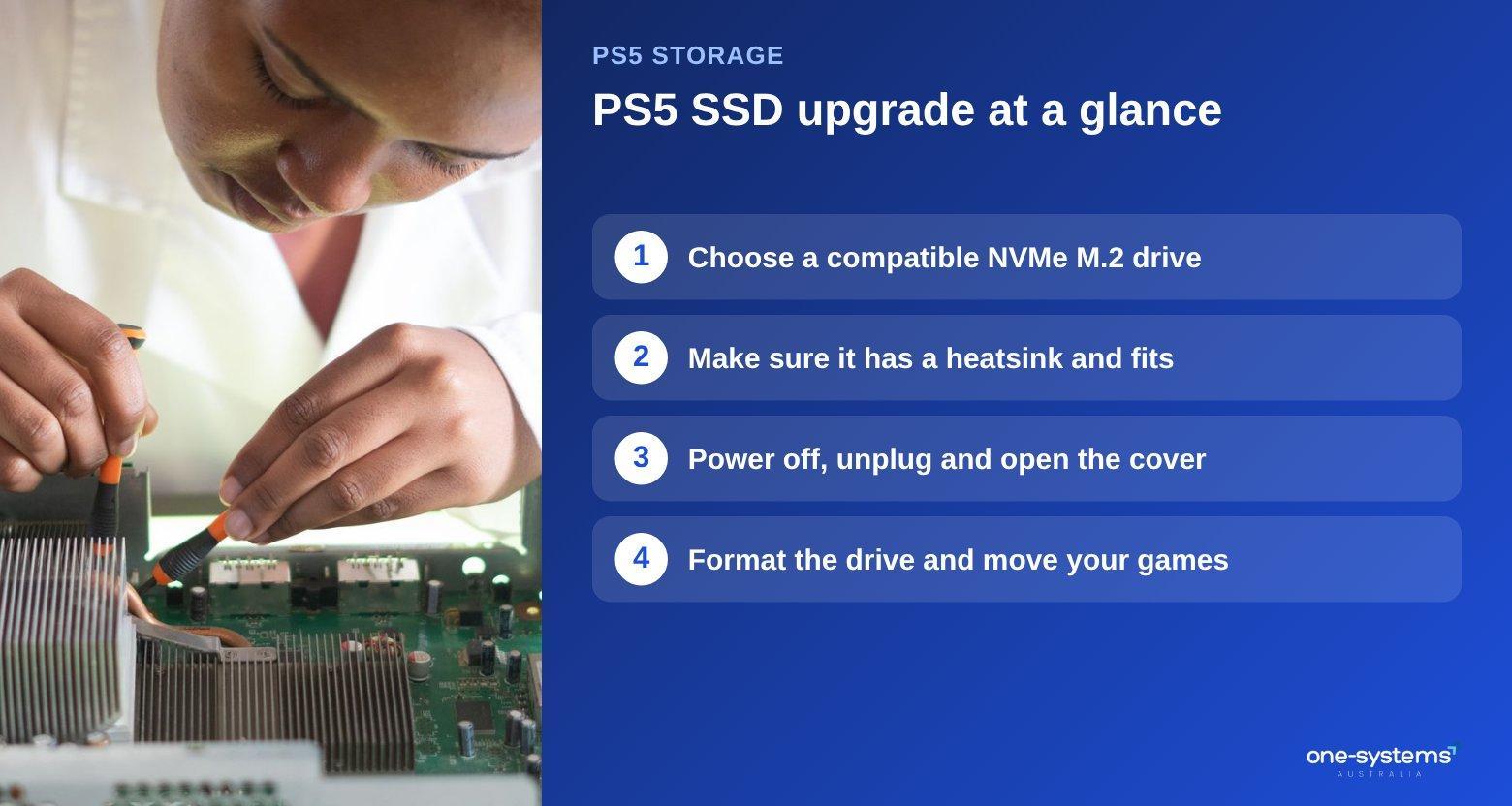
First, switch the console off completely and unplug it. Do not rely on rest mode. Place the console on a soft, clean surface and remove the side cover to reach the expansion bay. A small screwdriver is usually all you need.
Second, remove the expansion slot cover and the screw inside. Take care with small parts and keep them somewhere safe. If dust is visible, clean it gently with a dry brush or a puff of air. Our maintenance tips explain how to clean safely.
Third, fit the heatsink to the drive if it is not pre-installed, then insert the drive at an angle into the slot and press it down. Secure it with the screw at the right position for the drive length. Do not overtighten, because the board is delicate.
Fourth, replace the covers, reconnect the cables and power on. The console will prompt you to format the new drive, and it will test its speed. If the test fails, the drive may not be suitable.
Finally, move your games across. You can transfer installed titles from the internal storage and free up room for new ones.
Take your time and avoid forcing anything. If a part does not fit, stop and check. A damaged slot or board is far more expensive than the drive, and our PS5 repair service sees these cases. Before any hardware work, back up your saves, and if you ever lose files, our data recovery team may be able to help. If you feel uncertain, get in touch, and learn more about us on the about page.
Internal expansion versus external drives
An external USB drive is often the first idea people have, and it has a role, but it is not the same as an internal SSD.
External drives are easy to connect. You plug them in and format them through the console settings. They are useful for storing games you are not currently playing, and they are handy for moving content between consoles or keeping older titles.
The limit is that current-generation games usually must run from the internal storage or the M.2 expansion slot, not from a USB drive. That means an external drive is a parking space for your library, not a place to play from. Moving a game back to the fast storage takes time, but it is quicker than downloading it again, especially on a slow connection. If your downloads are slow, check your router and signal, and our network and Wi-Fi support page may help.
An internal M.2 SSD solves the problem directly. Games run at full speed and stay ready to play. It is the better long-term answer if you play many large titles.
Cost is also part of the picture. USB drives are cheaper per gigabyte, while internal SSDs are faster and neater. Many players use both: a fast internal drive for current favourites and an external drive for the archive.
If you start to feel limited by console storage and speed in general, it might be time to look at a PC. Our custom PC builds can be built with as much storage as you need, and the services page shows other ways we can help. Wherever you live, the areas we serve page lists our coverage, and you can see who is behind our advice on the about page.
Need a hand from a local technician?
Free diagnostics at our Norwood and Mount Barker workshops. Most phone repairs done same day.
Mistakes to avoid and when to ask for help
Most storage upgrades go smoothly, but a few common mistakes cause problems.
Buying the wrong drive is the most frequent one. A drive that is too slow, too thick or missing a heatsink will not work properly. Always check the official requirements and compare the drive's dimensions.
Skipping the heatsink is another. Without proper cooling, the drive can slow down or shut off during long sessions. If the drive has no heatsink, use one that fits the slot. Rushing the job leads to bent pins, stripped screws and cracked covers. Work slowly, use the right screwdriver and keep the parts organised.
Ignoring static can also hurt. Touch a metal object before handling the drive and avoid working on carpet.
Forgetting backups is a risk too. Before you start, make sure your saves are stored online. If something goes wrong, the loss can be painful.
If the console fails to start, shows errors after the install or the drive is not detected, stop and ask for help. A technician can check the slot, the board and the drive. Our PS5 repair page explains how we diagnose faults, and the data recovery guide is useful if files are affected. For a quick question, send a message, or drop in to the Norwood branch. We also handle general computer repairs if your PC needs attention too.
Get more space on your PS5
Pick the right drive, install it carefully and keep a backup of your saves. If you would like a hand, start with our PS5 repair service, contact us with your console version, or browse the shop and services for other options. You can also read about our team and check which suburbs fall under areas we serve.
Frequently asked questions
The answers our team gives most often.
Ready to get it sorted?
Walk in or book online — we'll diagnose for free and quote before we touch anything.