

Computer Won't Turn On or Running Slow? Simple Checks to Try Before You Call a Repair Shop
PC dead, on a black screen or painfully slow? Try these safe checks first and learn when to call a computer repair professional in Adelaide.

When a computer refuses to start or crawls along, panic is a natural first reaction. In many cases, though, the cause is simple and a few safe checks can solve it in minutes. This guide takes you through them in a sensible order, and tells you honestly when to stop and ask for help. If you reach that point, One Systems offers computer repair and laptop repairs across Adelaide, and you can reach the team through the contact page at any time.
When your computer won't turn on: start with the power
The most common reason for a dead computer is also the simplest: power is not reaching it. Work through these checks in order before assuming the worst.
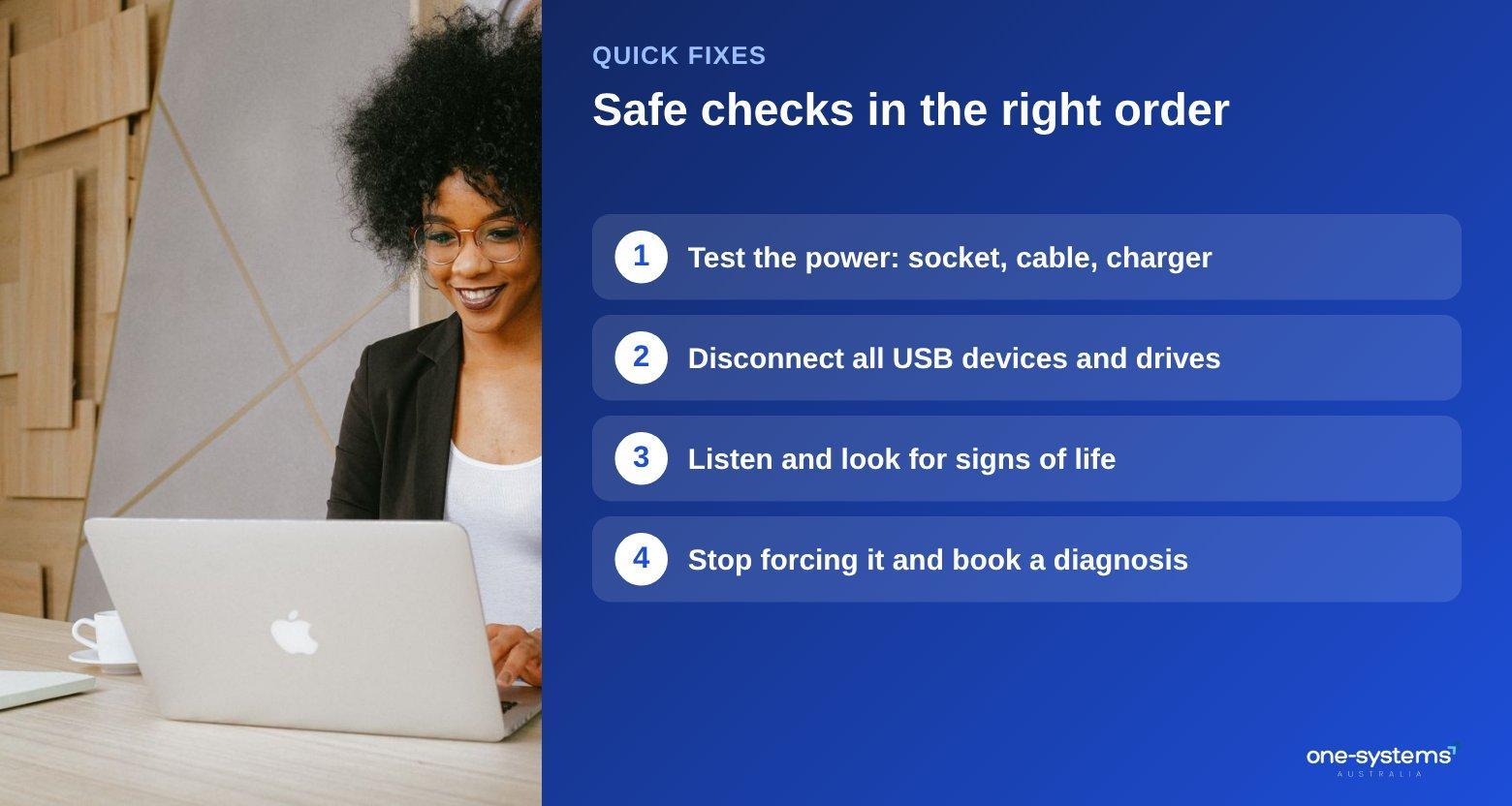
First, check the cable and the wall socket. Try a different outlet or a different power board, because a faulty board is a surprisingly frequent culprit. For a desktop, make sure the switch on the back of the power supply is on and the cable is firmly seated at both ends.
Second, for a laptop, unplug the charger, remove any accessories and hold the power button for about thirty seconds. This discharges leftover electricity and can clear a stuck state. Then plug the charger in and try again. Look closely at the charging port as well, because bent pins or loose connections prevent charging entirely.
Third, listen and watch. Fans spinning, lights flashing or beeps from the machine all tell you the power supply is alive and the fault sits elsewhere. A completely silent, dark device with a known good charger suggests a failed battery, power board or motherboard.
Fourth, disconnect everything else. A faulty USB device or external drive can stop a machine from starting. If it boots once they are removed, you have found the cause. If you also rely on a printer or router that seems to fail at the same time, a shared power board is a likely cause, and our network and Wi-Fi support and printer support pages explain how those devices are checked.
If none of this helps, do not keep forcing the power button. Repeated attempts can corrupt data, and our desktop repair and laptop repair teams are happy to check the hardware for you.
Black screens, error messages and "Preparing
Automatic Repair" A machine that powers on but shows nothing useful is a different problem from one that is completely dead.
If the screen stays black while fans run, connect an external monitor. If an image appears, your laptop display or its cable is at fault, and a laptop screen replacement may be needed. If nothing appears on either, the graphics hardware, memory or board may be involved.
The Windows message "Preparing Automatic Repair" or a repeating loop on the startup screen usually means the system files are damaged, often after an interrupted update or a sudden shutdown. Let the process run for a while, then try holding the power button to switch off and restart up to three times, which normally opens the recovery options. From there you can try Startup Repair or Safe Mode.
Blue error screens are another clue. Note the stop code or take a photo, because it helps a technician identify faulty memory, drivers or a failing drive. If errors appear along with clicking sounds or slow file access, back up whatever you can immediately and consider data recovery if the drive will not cooperate.
Do not repeatedly reset or reinstall if you have important files you have not saved. A reinstall wipes the drive, and our data recovery service cannot always bring back files once they are overwritten. When in doubt, bring the machine to the Norwood team or contact us first.
Take note of any recent changes before the fault appeared, such as new software, a power cut or a Windows update. This history is one of the most useful clues a technician can receive, and it often shortens diagnosis. While you wait for a repair, you can keep working on another device or a ready-to-use machine from the shop, so downtime does not have to stall your day.
Why your computer is slow and what to try first
A slow computer is rarely hopeless. Most slowdowns come from a short list of causes, and several can be fixed at no cost.
Start with startup programs. Open Task Manager, click the Startup tab and disable anything you do not need at launch. Too many apps starting together is the single most common reason a machine takes minutes to become usable.
Check storage space next. A drive that is almost full struggles, especially a laptop with a small SSD. Remove large unused files, empty the recycle bin and uninstall programs you no longer use.
Then look at updates. Pending Windows updates, outdated drivers and old browsers all slow things down. Restart the machine, install updates and run a full security scan. If you
suspect malware, a professional virus removal service is the safest way to be sure everything is gone.
Browser clutter matters too. Dozens of open tabs and unneeded extensions use large amounts of memory, so close what you are not using.
If all of that fails, the cause may be physical: an old spinning drive, too little memory or dust-clogged fans. Our laptop maintenance tips explain how to keep a machine cool, and the article on repair costs shows how upgrades are usually priced.
If your older machine is still slow after all of this, a fresh start may help. Backing up files and reinstalling Windows removes years of clutter, and many people are surprised by how quickly the computer feels new. For offices running Microsoft 365 on ageing computers, slow Outlook or Teams is often the first sign that memory or storage needs upgrading, which a desktop repair technician can usually handle quickly.
Signs the problem is hardware, not software
It helps to know when a fix is beyond a settings change, because pushing on can make things worse.
Unusual noises are a strong signal. Clicking or grinding from the drive, or a fan that screams under light use, points to mechanical wear. A failing drive may also cause freezing when you open files, files that vanish or take ages to copy and repeated disk errors.
Heat is another sign. If your laptop is too hot to touch, or shuts itself off under load, the cooling system may need cleaning or new thermal paste. This is a particular issue for gaming machines, so if you play demanding titles, the guide to a $1000 gaming PC and our custom PC builds explain how good cooling and parts keep performance steady. Physical damage matters as well. A drop can loosen internal connectors, damage a hinge or crack a display. Liquid is more serious again: read about laptop water damage repair and switch the device off straight away.
Battery issues also show up as hardware faults. A laptop that dies at 40 percent, swells or only works when plugged in needs a new battery, not a software fix. Do not use a swollen battery, and bring it in as soon as possible.
Intermittent faults are the hardest to spot. A computer that works for an hour and then shuts down, or that fails only when it is moved, often has a loose connection or an overheating component. Keep notes on when it happens, because a pattern helps a technician find the cause much faster.
If several of these signs match your computer, stop troubleshooting and arrange a proper diagnosis. The services page shows what we can assess and repair.
Need a hand from a local technician?
Free diagnostics at our Norwood and Mount Barker workshops. Most phone repairs done same day.
When to stop and call a professional
Self-help has limits, and knowing where they sit protects both your data and your device. Stop and call for help if you smell burning, see smoke, notice a swollen battery or hear repeated clicking from the drive. Stop too if your machine holds files you cannot afford to lose and you are not sure they are backed up. At that point, every extra attempt at fixing it yourself increases risk.
Call a professional if you have tried the checks above and the problem remains, if error messages keep returning or if you do not feel comfortable opening the case. Laptops in particular have fragile cables and tiny screws, and one slip can turn a small repair into a large one.
It also makes sense to ask for help if the computer is used for work. Downtime costs money, and our business IT support team can keep small offices running with planned maintenance rather than emergency fixes. Home users benefit too, and the computer repairs in Adelaide page explains how to get started.
You do not need to travel far. We help customers across Adelaide, including Salisbury, Mount Barker and many other suburbs on the areas we serve page. If your laptop is giving trouble in a specific suburb, local pages such as laptop repairs in Norwood have the details.
Do not feel embarrassed about asking. Technicians see the same problems every week, and an early question is nearly always cheaper than a late rescue.
Get your computer working again
If the checks above did not solve the problem, you are not alone, and it is usually fixable. Describe what is happening through our contact page, see the full range of services or read about our business. You can also start with laptop repairs in Adelaide, explore the shop if a replacement makes more sense and see the areas we cover for the nearest location.
Frequently asked questions
The answers our team gives most often.
Ready to get it sorted?
Walk in or book online — we'll diagnose for free and quote before we touch anything.