

MacBook Water Damage, Won't Turn On or Keyboard Faults? What to Do Next
Spilled a drink on your MacBook or it won't start? Learn first steps, safe power checks, keyboard repair options and how Macs are saved.

A MacBook that is wet, silent or typing the wrong letters can feel like an emergency, and sometimes it is. What you do in the first few minutes after a spill, or the first few checks when a Mac will not start, can decide whether the repair is small or expensive. This guide walks you through each situation in a calm, practical order. For help from a real technician, our laptop repair team at One Systems looks at damaged machines across Adelaide, and the contact page is the quickest way to describe what has happened.
The first hour after a MacBook spill
Speed matters more than anything else when liquid meets a laptop. Act in the following order, and do not stop to wonder whether it looks fine.
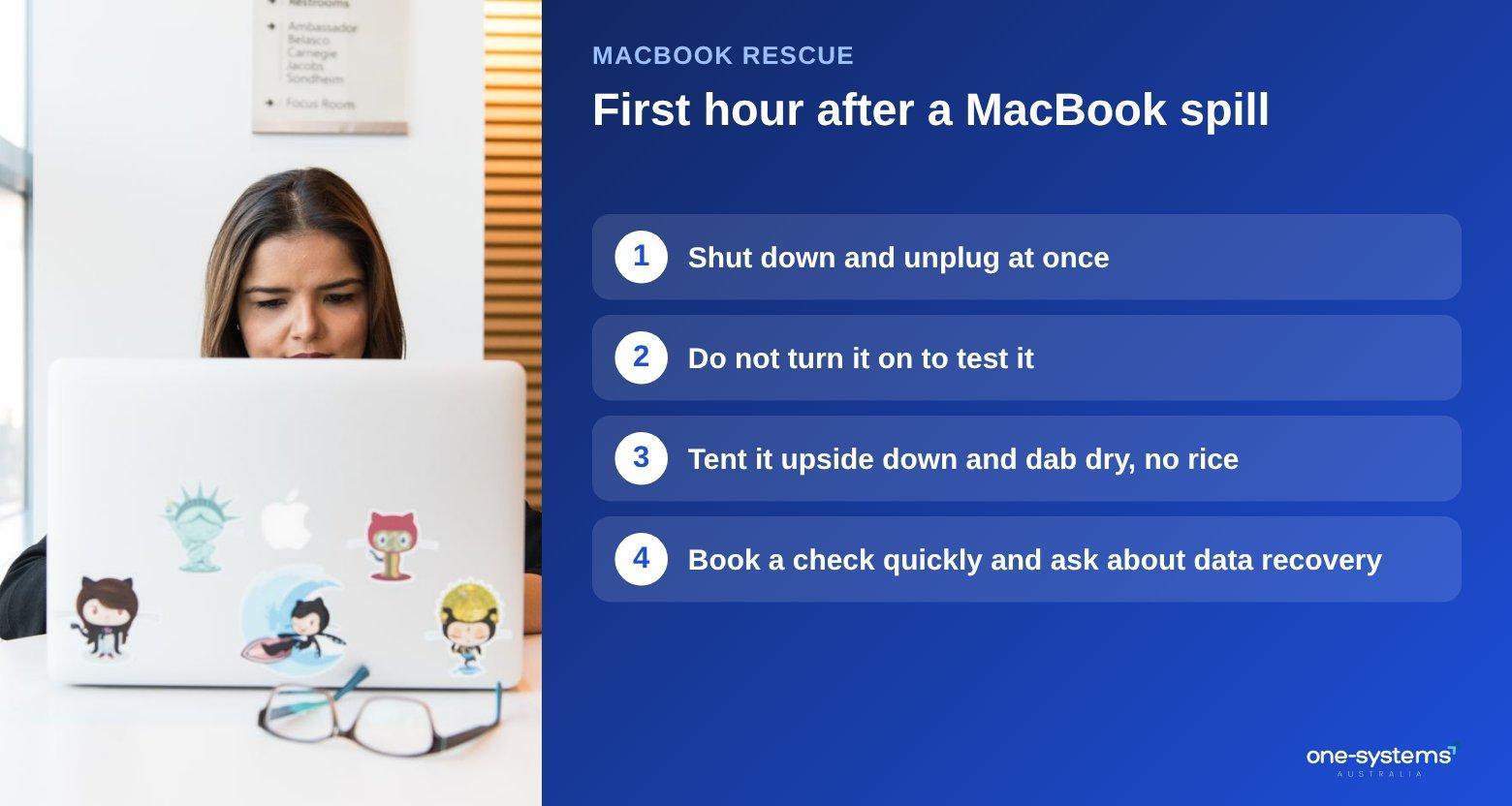
Shut the Mac down at once. If you can, hold the power button until it switches off, then unplug the charger and remove every accessory. Do not wait for a document to save, because a live circuit and liquid are a bad mix.
Do not turn it back on to check. This is the most common and most damaging mistake. A Mac that seems to work after a spill can short out minutes later, and power running through wet parts speeds up corrosion.
Turn the machine over, with the lid open like a tent, so liquid drains away from the board. Wipe the outside with a soft, dry cloth, and dab spills around the keys gently. Do not shake the laptop or use a hairdryer, because heat can push liquid deeper into the case. Skip the rice. It does not pull moisture from electronics and can leave starch dust inside. Note what spilled. Water is the easiest to deal with, while coffee with sugar, milk, juice and fizzy drinks leave sticky residues that corrode and attract dirt. Salt water is the worst of all. Telling the technician what it was helps them choose the right cleaning method. Book a check as soon as you can, even if the Mac seems unharmed. Our water damage guide explains the same steps for all laptops, and the Norwood team can assess your Mac in person. If the machine holds files you cannot lose, ask about data recovery early, and send details to the contact page straight away. You can also browse the services for everything we handle.
Why liquid damage can show up days later
Many people feel relief when a Mac survives a spill, only to find it failing days later. The reason is corrosion.
When liquid reaches the board, it begins a slow chemical process. Minerals and sugars leave residue, and electricity passing through damp areas encourages metal to corrode. The first signs may be minor: a key that sticks, a charging port that fails to respond or a battery that drains quickly.
Over time, the corrosion spreads along tiny tracks and under components. By the time the machine fails, the damage can be extensive. That is why a prompt cleaning is far more effective than waiting to see what happens.
Hidden liquid is another factor. A MacBook has many tiny gaps, and fluid can travel under the keyboard and along the board to places you cannot see. The spill might have looked small, but the path it took may be long.
Indicators inside the case can confirm contact with liquid, which a technician will check as part of the assessment. This helps to decide how far the damage has spread and what should be replaced.
Do not rely on the warranty. Liquid damage is generally not covered by standard warranties, so it is worth finding out where you stand with your insurance. The insurance damage reports page explains how a written assessment can support a claim.
Repair success depends on speed, the liquid involved and how long the Mac was powered. Some machines need only a keyboard and a clean, while others need
component-level work on the motherboard. Either way, the earlier the better, so book an assessment as soon as you can. For general advice on handling a laptop, read the laptop maintenance tips, or ask our computer repair team about your particular case.
MacBook won't turn on: safe checks before repair
A silent MacBook is alarming, but the cause is not always serious. Work through these checks in order.
Start with power. Plug in the original charger, try a different wall socket and let the Mac charge for at least fifteen to thirty minutes. A deeply drained battery sometimes shows no sign of life at first.
Check the charger and the cable for damage, and look for lint or debris in the charging port. Try a different compatible charger if you have one, because a failed charger is a very common cause.
Look and listen for signs of life. A faint sound from the fans, a glow on the screen or a charging light all suggest the Mac is receiving power. If the screen is dark but you can hear a startup chime, the display or its brightness setting might be the problem. Try an external monitor if you have one.
Disconnect everything else. A faulty adapter, drive or cable can stop a Mac from starting, so remove all accessories and try again.
Try the standard reset methods for your model. The steps are different for Intel-based Macs and Apple silicon Macs, so follow the official guidance for your exact model, and do not try random key combinations.
Think about what happened before it died. A recent drop, spill or software update gives important clues. If liquid was involved, stop and read the section above.
If these checks do not help, avoid repeated attempts. Our diagnostics article takes the process further, and you can get in touch for an assessment. The laptop repairs page covers faults like this, and the cost guide explains what to expect from the quote. Do not forget to ask about backing up your files, since data recovery is possible in many cases.
MacBook keyboard faults: sticky, repeating or dead
keys Keyboards take a lot of abuse, and some Mac models are particularly sensitive to dust and debris.
Sticky or repeating keys are the most common complaint. A single key that types twice, sticks or feels hard to press is usually caused by dirt or a small crumb under the keycap. Try holding the Mac at an angle and using short bursts of compressed air. Do not pry off keys unless you know how, because the mechanisms are fragile.
Keys that do not respond at all can be due to damage, liquid or a connection fault. If a whole row or area fails, the keyboard cable or the board may be involved. Software checks help to rule out settings, so test with an external keyboard and see if the problem remains.
Repair is often a keyboard replacement. On many MacBooks the keyboard is attached to the top case, which also holds the trackpad and battery, so the job can be bigger than people expect. A technician will explain what is involved, and how long it takes depends on the model and the parts. If a spill caused the fault, the board needs checking at the same time.
Typing with a damaged keyboard can make things worse, so stop using it if keys are crunching or the case is bulging. A bulge may signal a swollen battery, which needs urgent attention.
Our laptop repairs in Norwood, Salisbury and Mount Barker pages show where to take a laptop with keyboard faults, and the contact page is open for questions. The services page lists related repairs.
Need a hand from a local technician?
Free diagnostics at our Norwood and Mount Barker workshops. Most phone repairs done same day.
What a technician does, and how to protect your data
Knowing what happens behind the counter helps you trust the process and prepare well. For liquid damage, the technician opens the case, disconnects the battery and inspects the board and components. They look for corrosion and residue, and clean the affected
areas with the right solutions and tools. Parts that are badly corroded may need replacing, and the machine is tested thoroughly before any further steps.
For power faults, the technician tests the charger, the battery, the charging circuit and the board. The aim is to find the exact failure rather than replace parts at random. For keyboards, the technician checks the cause, whether it is debris, wear or liquid, and recommends cleaning or replacement. They also examine the surrounding parts in case the fault is not limited to the keys.
Data matters most to many people. If you have not backed up, tell the technician straight away. If the storage is still readable, the files can often be copied before further work. On many modern Macs, the storage is part of the board, which makes early assessment especially important.
Prepare by noting your password, turning off Find My if you can, and bringing the charger. Ask for a written quote, an estimated timeframe and details of any warranty on the work.
If the repair is not worth the cost, there are choices. Read the article on an old Mac to compare repairing and replacing, or browse the shop for an alternative. You can also learn about us, check the areas we serve and ask the Norwood team to talk you through the options.
Get your MacBook looked at
The sooner a damaged or silent MacBook is checked, the better the outcome. Start with laptop repairs in Adelaide, contact us with your model and what happened, or review the services. You can also read about the team and see the shop if you need a backup machine.
Frequently asked questions
The answers our team gives most often.
Ready to get it sorted?
Walk in or book online — we'll diagnose for free and quote before we touch anything.